Pages

Sunday, 9 June 2013

CHARINDEX() function in SQL.

CHARINDEX is a SQL function that searches an expression (char or string) in given expression and return start position if matches found. If matches not found it return 0.

Syntax:
CHARINDEX(Expressio1, Expression2, [Start_Location])
Where,
Expression1: String to be look for in expression2
Start_Location: It means from where to start looking for expression1 in expression2.

NOTE:
It returns bigint if expression2 is of verchar(max), nvarchar(max), varbinary(max) datatypes, else it returns int.

Example:


Saturday, 25 May 2013

Using SET ANSI_NULLS in SQL Server

The ANSI_NULLS used to determine that how SQL Server handles the comparison operations with NULL values using = or <> operator.
Syntax: SET ANSI_NULLS ON/OFF
1) SET ANSI_NULLS ON:
This option always return FALSE when comparison with NULL using = or <> operator. So to do the comparison with NULL values we need to use IS NULL and IS NOT NULL.
2) SET ANSI_NULLS OFF:
Using this option, we can compare NULL using = and <> and will work as usual.

NOTE: The default option is ON. 

Examples:

Saturday, 20 April 2013

How to transfer existing table data into new table in SQL server?

We can easily transfer/copy one SQL table data into new SQL table without creating table definition using SELECT-INTO-FROM query format.
Suppose I have one SQL table named Employee with lots of data, now if I want to replicate Employee table into new table named Employee_New. So using below query we can easily achieve our task:  
Syntax:
SELECT * INTO [New_Table_Name]
FROM [Existing_Table_Name]
Example:
SELECT * INTO Employee_New
FROM Employee

Sunday, 31 March 2013

How to Right Align Numeric Values in Result Panel in SQL Server?

Generally we apply right alignment to numeric values in our project for easily access and its one of convention to apply right align for numeric. We can also apply this in SQL.

Steps:
1) Open SSMS à Tools à Options..
2) Query Result à SQL Server à Result to Text
3) Check ‘Right align numeric values’ à save it and see result by executing query in new Query Window.
Note: It only works for ‘Result to Text’ option.


Result:

Saturday, 16 March 2013

How to reset/set new Identity value in SQL?

We can easily change, reset, view identity value using DBCC(Database Console Commands) of SQL.

1) To Reset Current Identity Value, if needed
Syntax: DBCC CHECKIDENT ("Table_Name")
Example: DBCC CHECKIDENT ("tblCustomers")
2) To View Current Identity Value
Syntax: DBCC CHECKIDENT ("Table_Name", NORESEED)
Example: DBCC CHECKIDENT ("tblCustomers", NORESEED)
3) To Change Identity Value with New Value
Syntax: DBCC CHECKIDENT ("Table_Name", RESEED, New_Value)
Example: DBCC CHECKIDENT ("tblCustomers", RESEED, 25)

Saturday, 9 March 2013

How to use "UNION" and "ORDER BY" together in SQL?

This is one of tricky question and I love tricky question so I am going to write this post. How if I run below query in sql server:
SELECT TOP 1 * from Employee ORDER BY EmpId ASC
UNION
SELECT TOP 1 * from Employee ORDER BY EmpId DESC
This query result in error due to incorrect position of ORDER BY cause we only use ORDER BY clause to the final result set.
Error Message:


There are many ways to recreate above query without error but the easiest one is following:
SELECT *
FROM (
    SELECT TOP 1 * FROM Employee ORDER BY EmpId ASC) FIRST
UNION
SELECT *
FROM (
    SELECT TOP 1 * FROM Employee ORDER BY EmpId DESC) LAST


Sunday, 24 February 2013

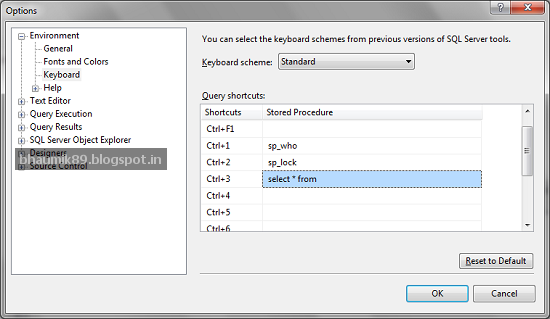
How to make your own keyboard shortcut in SSMS?

Today I am going to show you how to create your own keyboard shortcut in SQL server management studio to increase your productivity in development.

We all write SELECT * FROM query very frequently while using SQL so instead write it we can create it as a keyboard shortcut for quick access. Finally it’s depends on you which query you uses most frequently and create shortcut according to it.

STEPS:
1) Open SQL server management studio.
2) Goto Tools à Options.. à Environment à Keyboard.
3) Select your shortcut and enter your query.


How To Use:
Now in Query editor, you need to just type [Table_Name] and select that [Table_Name] then just press shortcut key that you create. That’s it. Enjoy.!!